Configuring the Radio
VividHosting (New - Black)
-
Connect to directly the robot's radio via ethernet.
-
Navigate to the radio's configuration page. Try these IPs in order until one loads:
Order IP Reason 1 http://10.32.55.1Team IP ( http://10.TE.AM.1) — pad your team number to 4 digits with leading zeros if needed, then split into two 2-digit segments. For example: 3255 →10.32.55.1; 255 → pad to 0255 →10.02.55.1.2 http://192.168.69.1Factory default radio IP 3 http://10.0.1.1Default after a firmware update (radio resets team number to 1) Important
Make sure your computer is connected only via Ethernet to the radio and not connected to any school or enterprise Wi-Fi. Enterprise networks often block direct device connections and the radio's private IP range (
10.x.x.x) may conflict with school network addressing, making it unreachable.Important
Use
http://, nothttps://. The radio does not support HTTPS and the page will fail to load if you use a secure connection. -
Configure the radio settings:
- Enter 3255 for our team number
- Enter our robot's name for the SSID Suffix
- Enter our Wifi password for both WPA keys: Usually, we use SuperNURDs
- For the robot radio, set mode to Robot Radio Mode
- For the field radio, enter the same team number, SSID Suffix, and WPA keys, but choose Access Point Mode
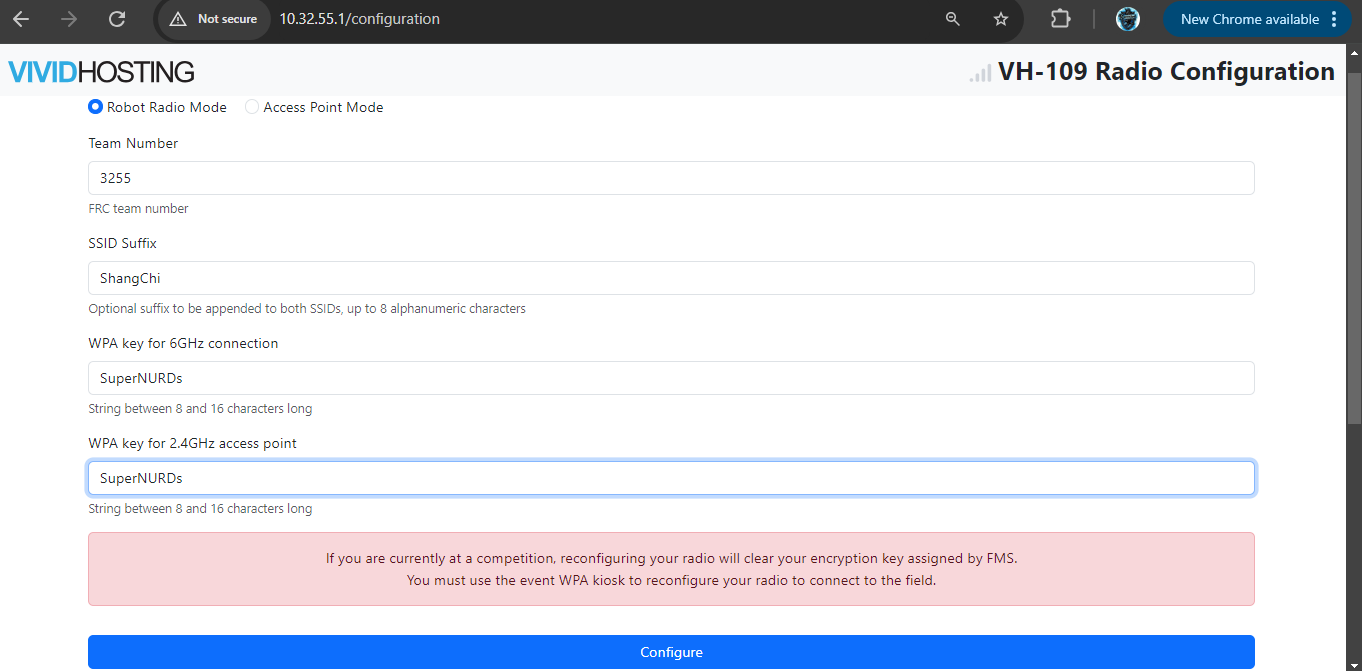
- Configure!!
Important
REQUIREMENT: PRINT AND ADD LABEL
NAME: <SSID used>
PASS: <password used (should be SuperNURDs)>
Installing Firmware
-
Go to FRC Vivid Hosting to look for the latest firmware update.
-
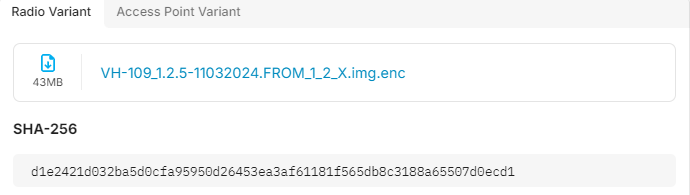
Download the firmware file and copy the SHA-256 code underneath it.
-
Connect to the robot's radio and navigate to its IP address.
-
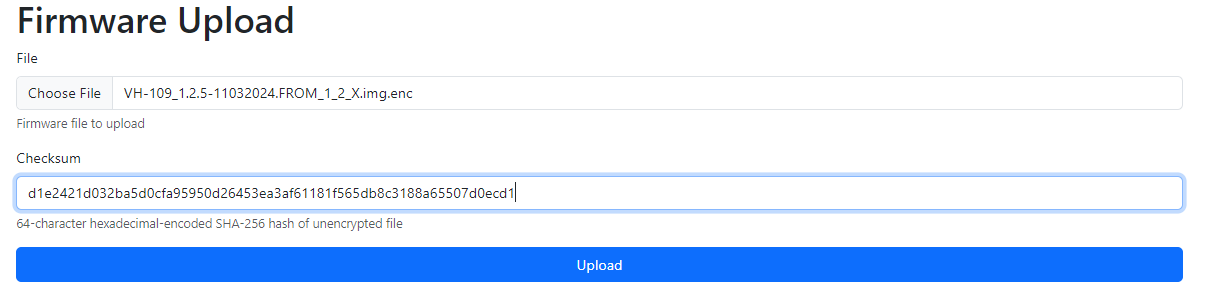
Scroll down to firmware upload, select the recently downloaded firmware file, and paste in the SHA-256 code into the Checksum.
-
Click upload and wait 2-3 minutes while the radio is updating and rebooting. Do not turn off power during this process.
-
Once new firmware is installed, previous Wifi settings will not be saved and you will have to configure the radio again.
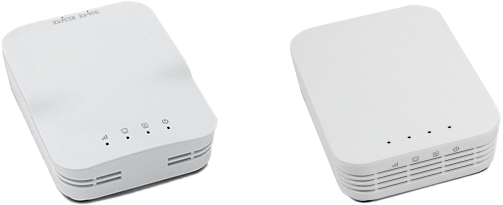
OpenMesh (Old - White)
If you are using an OpenMesh radio (White Radio) please follow the FRC Guide.